On Mac (Catalyst)
Version T on Mac — one window for the Hub and the connection list, panels as separate windows, and how each one sizes.
Version T runs on Mac as well as iPad, through Mac Catalyst — the same app, the same project, the same console connections. Almost everything works exactly as it does on iPad; this page collects the differences worth knowing.
The main window is the Hub and the connection list in one
On iPad, Discovery (choosing a console) and the Hub (launching panels) are separate screens. On Mac they’re the same window: the panel launcher — Overview, Routing, Spatial, Ensemble, Show, Project, Settings — sits above the connection list (Author Mode, and any console such as dLive Director), with a Disconnect button and the App-settings gear. Connect and launch from one place; the discovery screen is the hub.
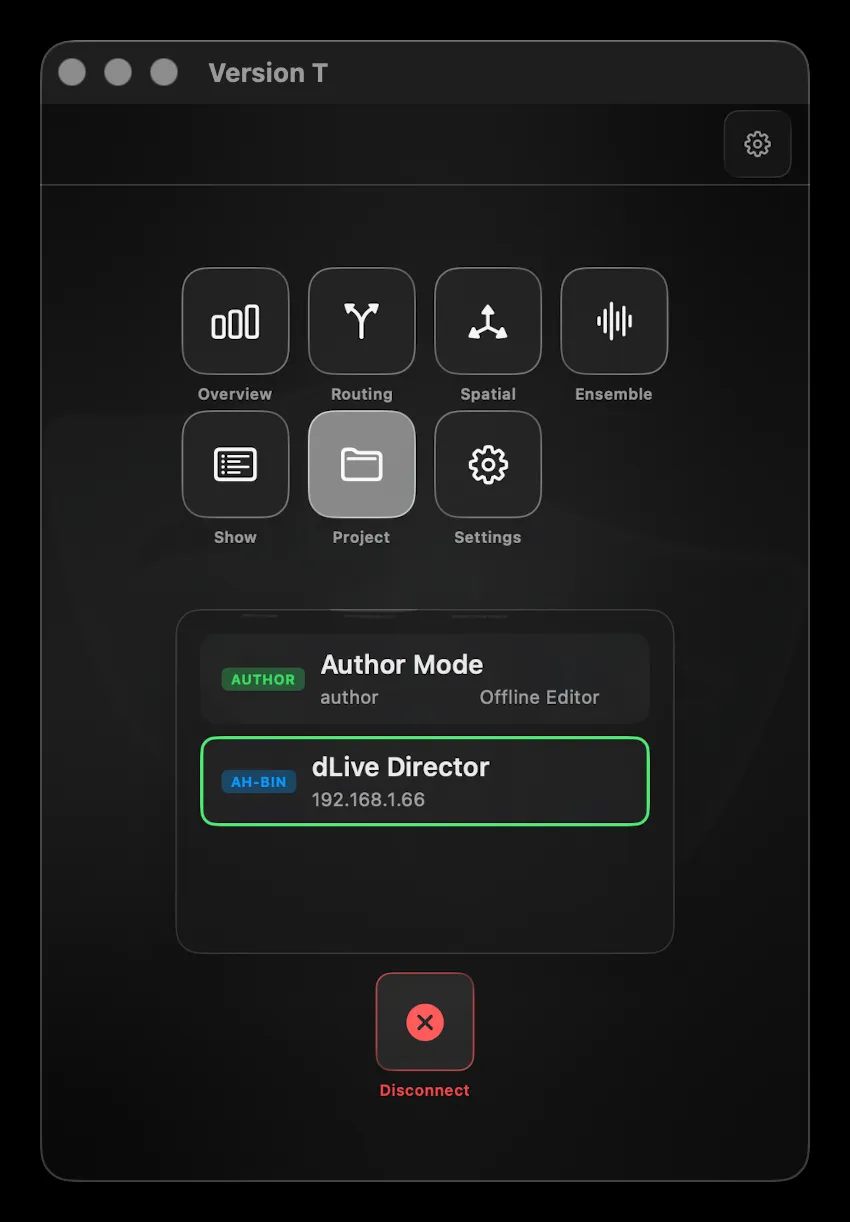
Panels open as their own windows — as many as you like
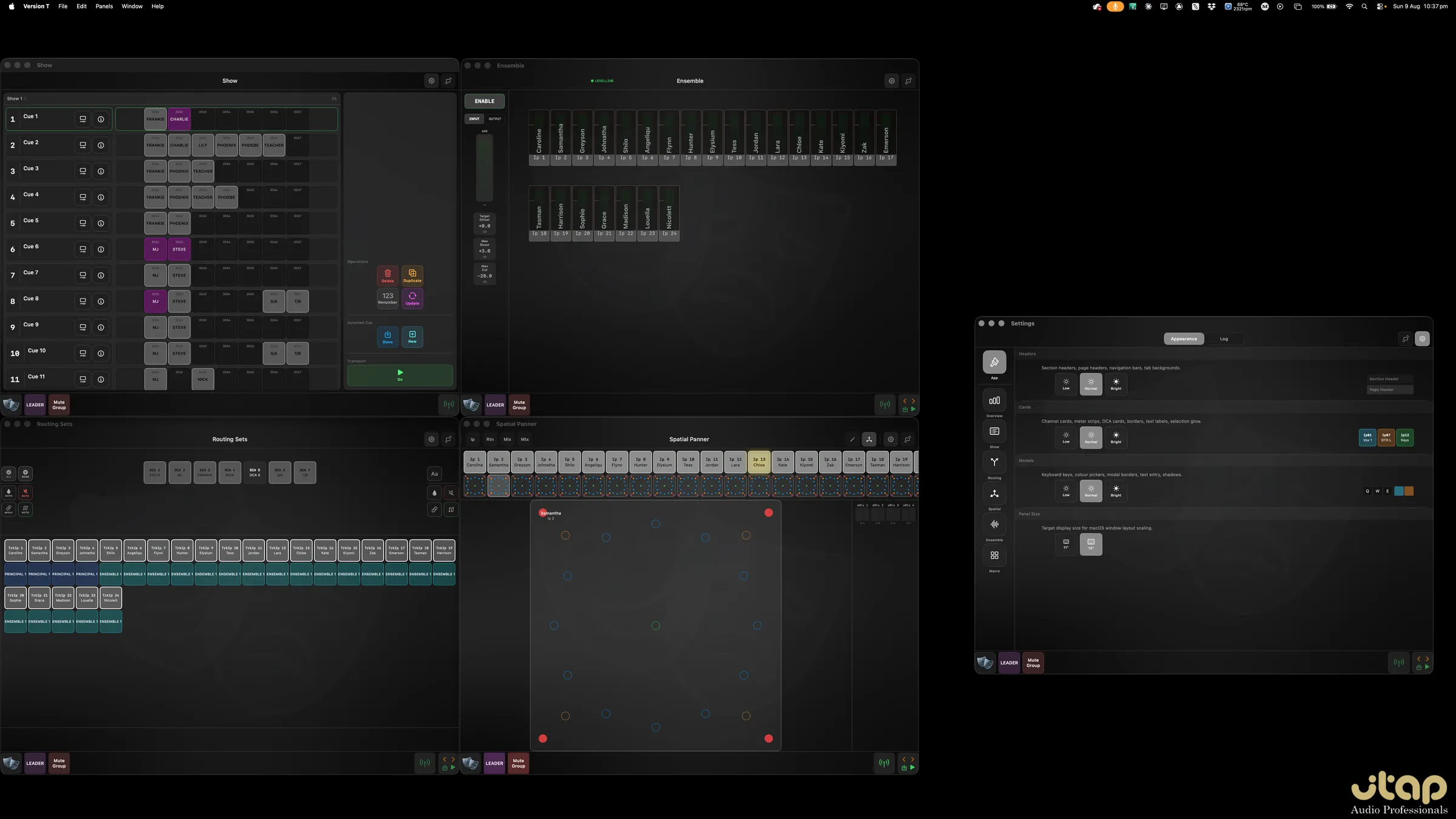
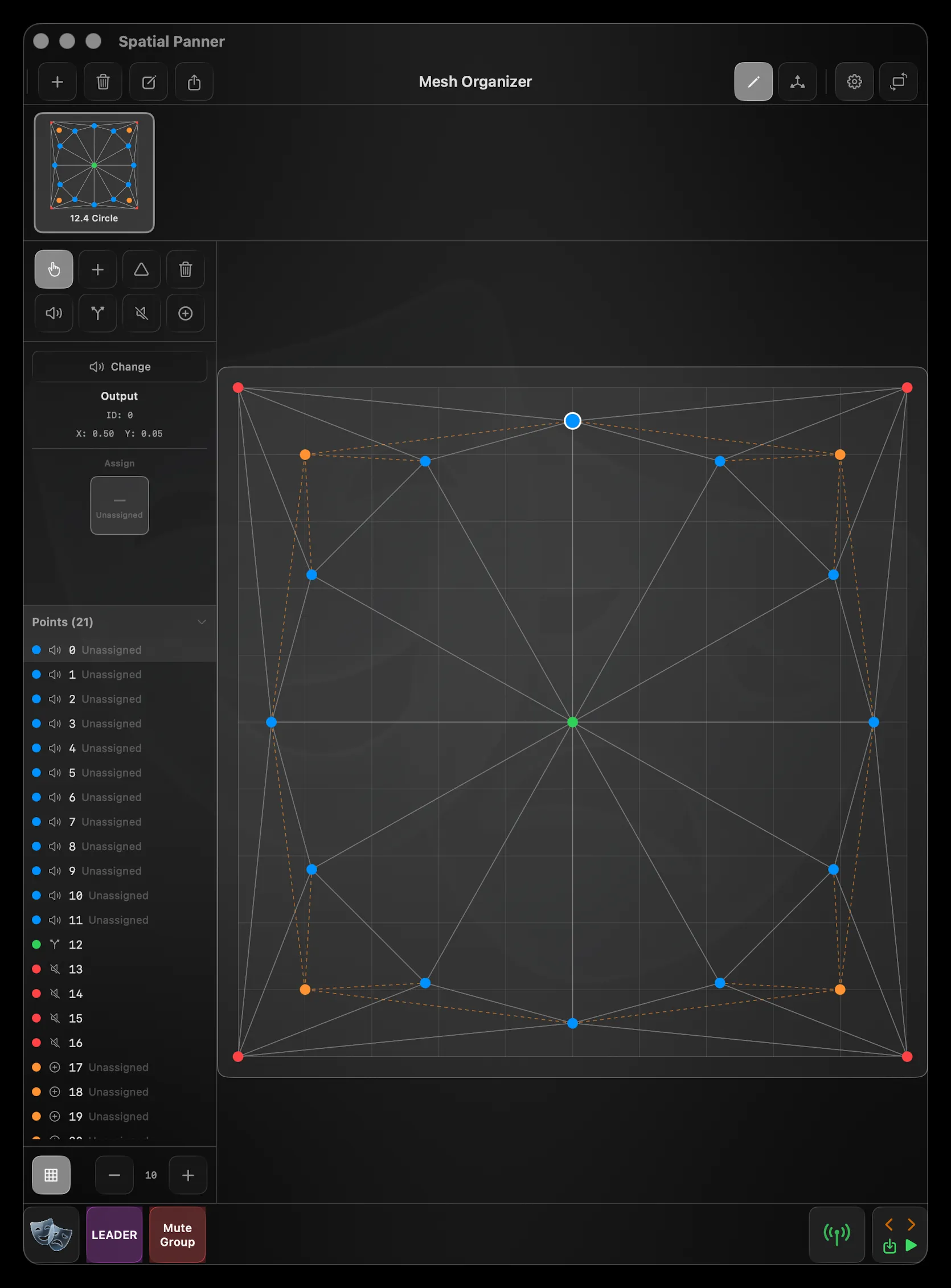
From that window, opening a panel opens it in its own window, and you can open as many windows as you like — including several of the same panel. Show, Ensemble, Routing Sets, the Spatial Panner, even Settings, all open at once and tiled across the screen. Each window is fully live and carries its own dock (connection, transport, macro sets), so you can drive the whole show from a layout of separate panels. Panels are also on the Mac menu bar (the Panels and Window menus), and the dock’s masks widget returns you to the main window rather than swapping the panel in place.
This suits a fixed FOH position where you’ve got the screen space to keep the whole show in view.
Window sizing
How a window sizes depends on the panel:
- Overview resizes freely. Drag an Overview window to any size, and run several at once — each on a different user set, view (cards or meters) and size — for a custom wall of metering no single iPad could show at once.
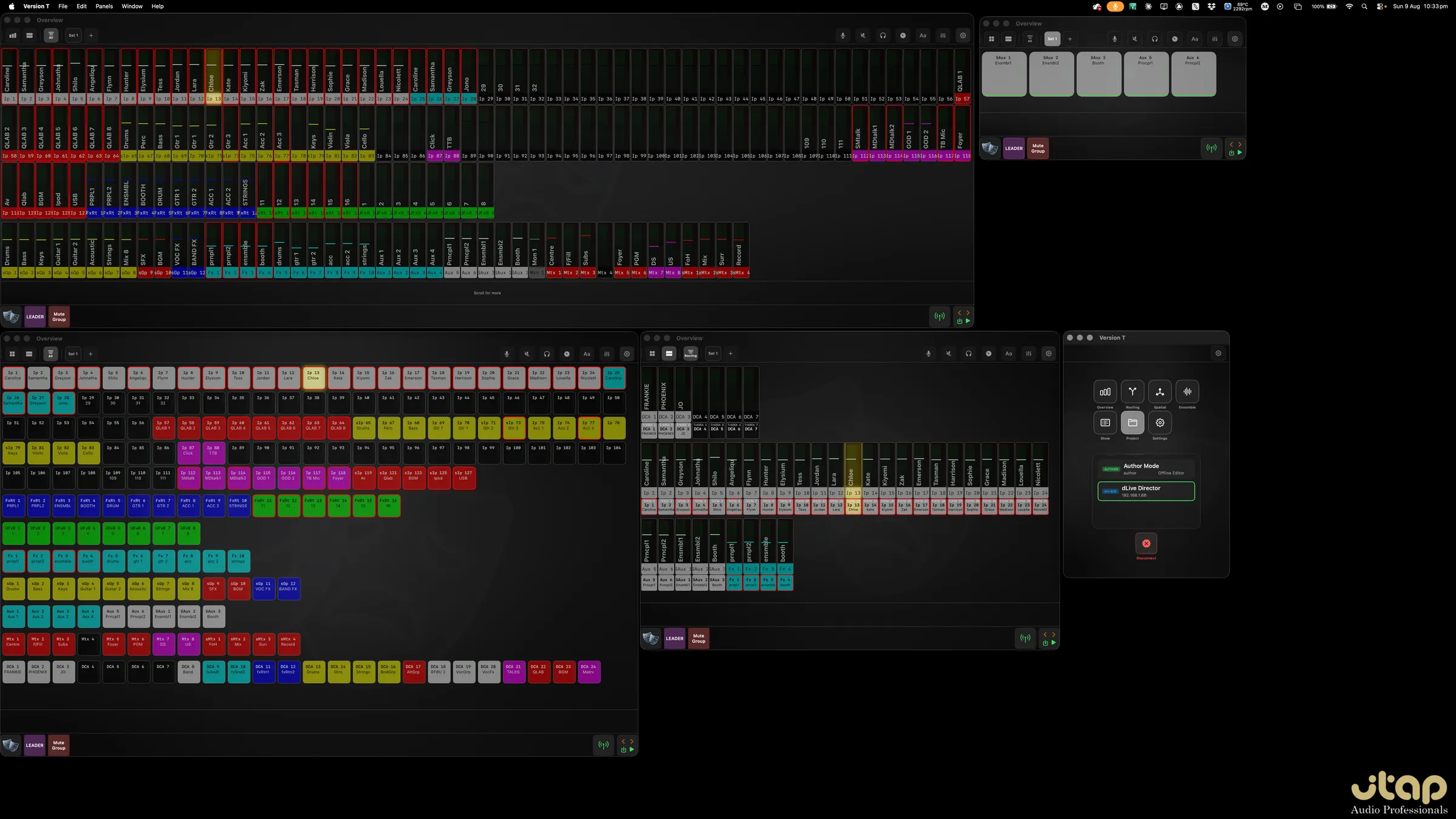
- Every other panel keeps an iPad-shaped window. These don’t free-resize; instead you set an orientation — landscape or portrait — from the header toggle, and a size in Settings → App → Panel Size that mimics the largest or smallest iPad window. The panel’s layout reflows for each orientation, exactly as it does on iPad, just in its own window.
Pointer and keyboard
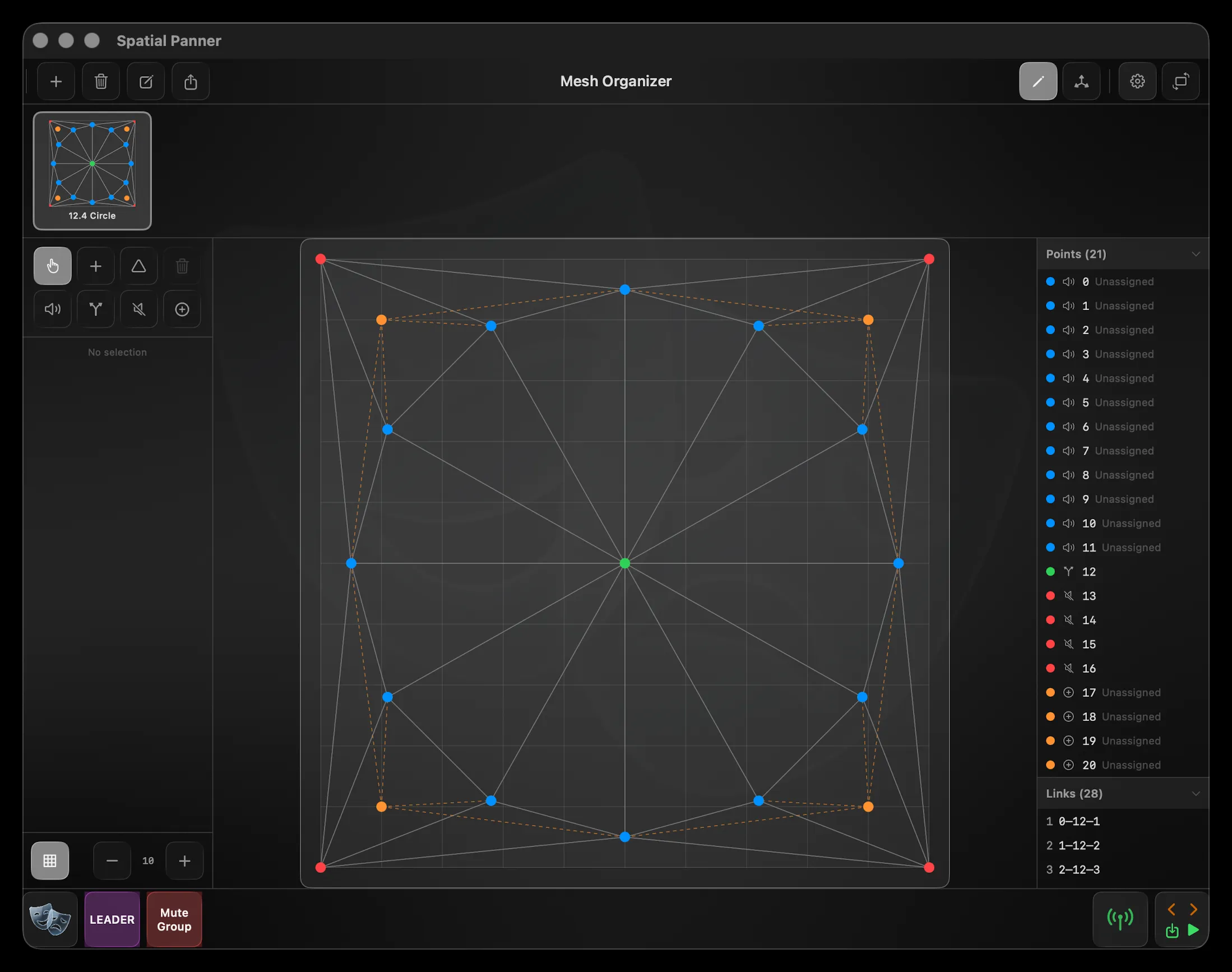
Every tap on iPad is a click on Mac. The drag gestures — riding faders in Overview, moving a source in the Spatial Panner, floating a dock widget — all work with the pointer, and text entry (names, comments, macro commands) uses your hardware keyboard.
Installing on Mac
The Mac build comes from the App Store, the same as the iPad one — and like it, is coming to the App Store pending Apple review. Once it’s listed, open the App Store on your Mac, search for Version T, and install it from there. Updates arrive automatically.
macOS may ask for Local Network permission the first time you open it. Version T needs this to find consoles on your network, so allow it — without it, discovery can’t see your console.