Overview
The whole console at a glance — a live grid of every channel you can mute, solo, ride, rename and re-source in place.
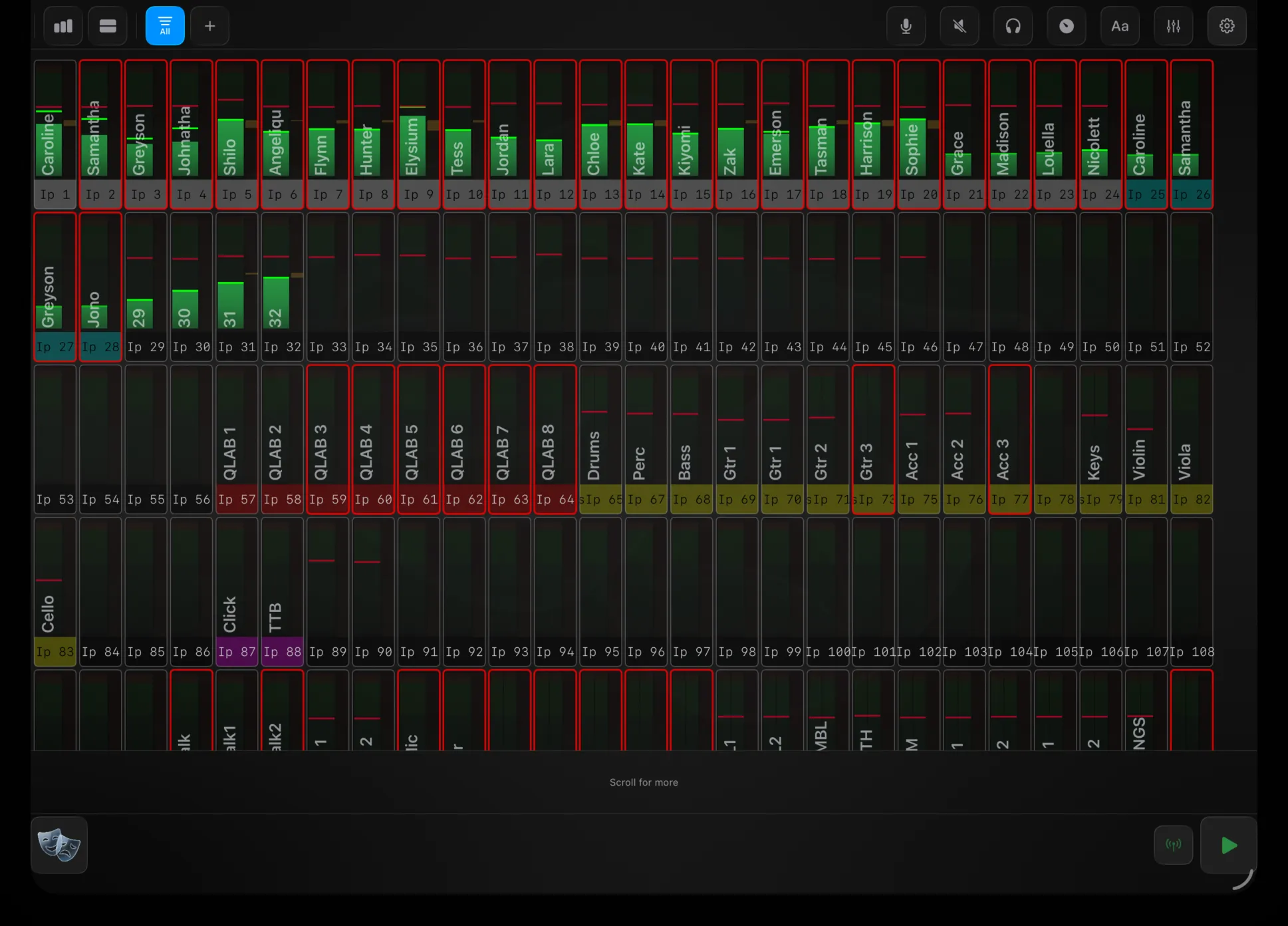
Overview is the whole console at a glance. Every input, mix and DCA is laid out as a live grid — names, colours and metering straight from the console — and from the same screen you can mute, solo, ride levels, rename and re-source any of them. It’s role one at its purest: a faithful mirror of what the console currently holds, turned into something you can act on.
Reading the screen
Channels are grouped by role — inputs, returns, FX, groups, auxes, mains and DCAs — in the console’s own order. Three views show them differently; toggle from the header:
- Cards — a tile per channel with its name, number, colour and a live meter.
- Meters — consolidated meter strips, for dense metering across many channels.
- Strip — a channel-strip layout.
Because Overview mirrors the console, it shows only what the console currently holds. Change a level or mute on the surface and the grid follows.
Function modes — what a tap does
The buttons on the right of the header set what tapping a channel does. One is active at a time:

| Mode | Tapping a channel |
|---|---|
| Alt Src | Opens its alternate-source detail (inputs and DCAs) |
| Mute | Mutes / unmutes it |
| PAFL | Solos / unsolos it (PAFL) |
| Meters | Opens a detailed meter view for it |
| Edit | Opens name and colour editing for it |
| Fader | Drag channels to ride a parameter — see below |
In Fader mode you drag a channel to change a value. Which value is set by the fader sub-mode (long-press the Fader button): Level, Trim, Gate threshold, Comp threshold, or HPF frequency. Level has a detent at 0 dB.
Alt Src, Meters and Edit open a detail panel over the grid; tap the dimmed background to close it.
Filters and user sets
The filter button (left of the header) narrows the grid — All, Inputs, Mix, DCA, or Routing (your tracked inputs and DCAs plus the routing pool). Tap to cycle; press and hold for the full menu.
Beyond the fixed filters you can build user sets — your own saved selections of channels, colour-tagged, so you can jump to just “the band” or “radio mics.” Tap a set to show only its channels; the + button creates one. Sets are edited in Settings.
Preferences
The gear (top-right of the header) opens Settings → Overview. It has four tabs.
View
How the grid looks.
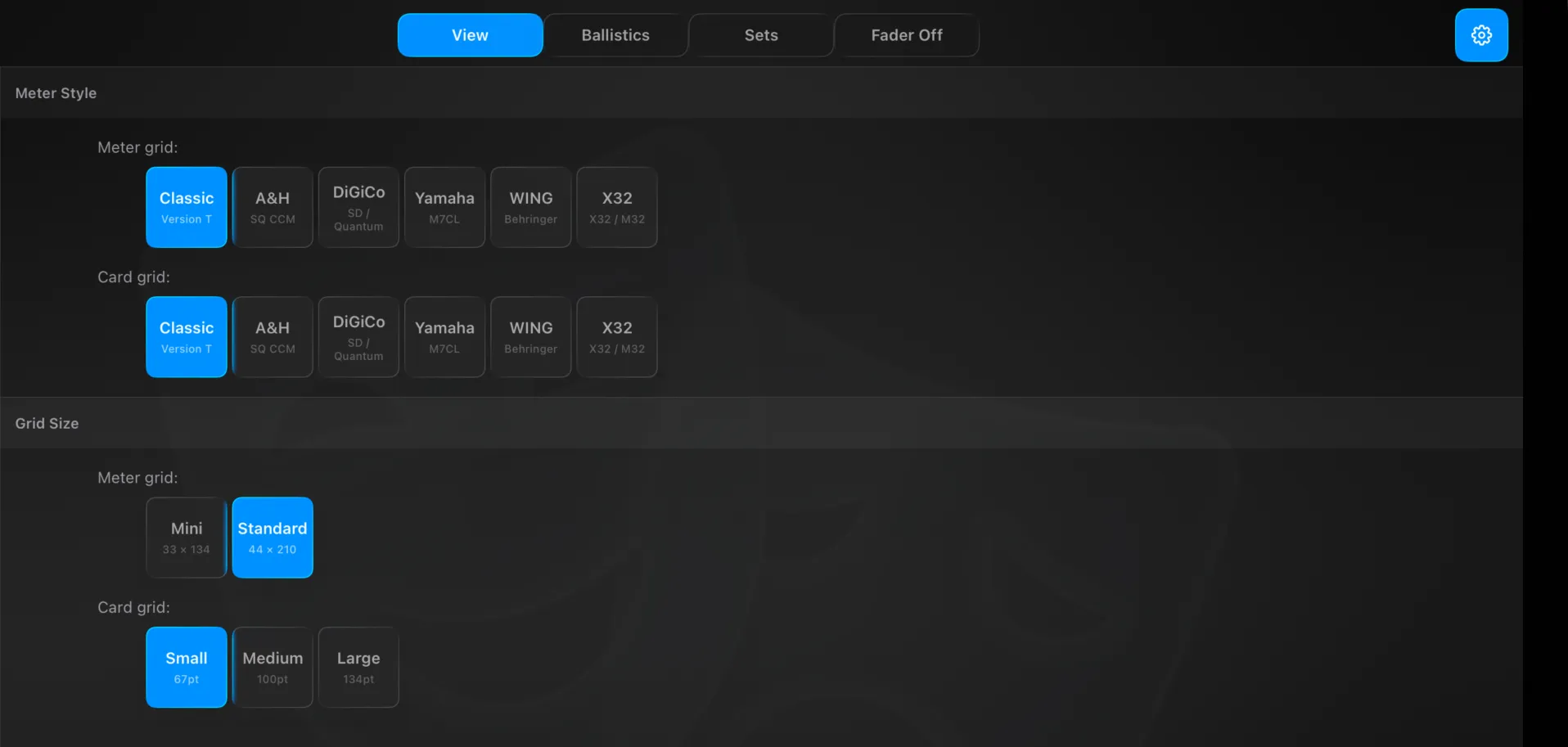
- Meter Style — render the meter grid and the card grid in the visual style of a chosen console: Classic (Version T), A&H (SQ CCM), DiGiCo (SD / Quantum), Yamaha (M7CL), WING (Behringer), or X32 (X32 / M32). Meter and card grids are set independently.
- Grid Size — Meter grid: Mini (33 × 134) or Standard (44 × 210). Card grid: Small (67 pt), Medium (100 pt) or Large (134 pt).
Ballistics
How the meters respond, in two groups.
Metering
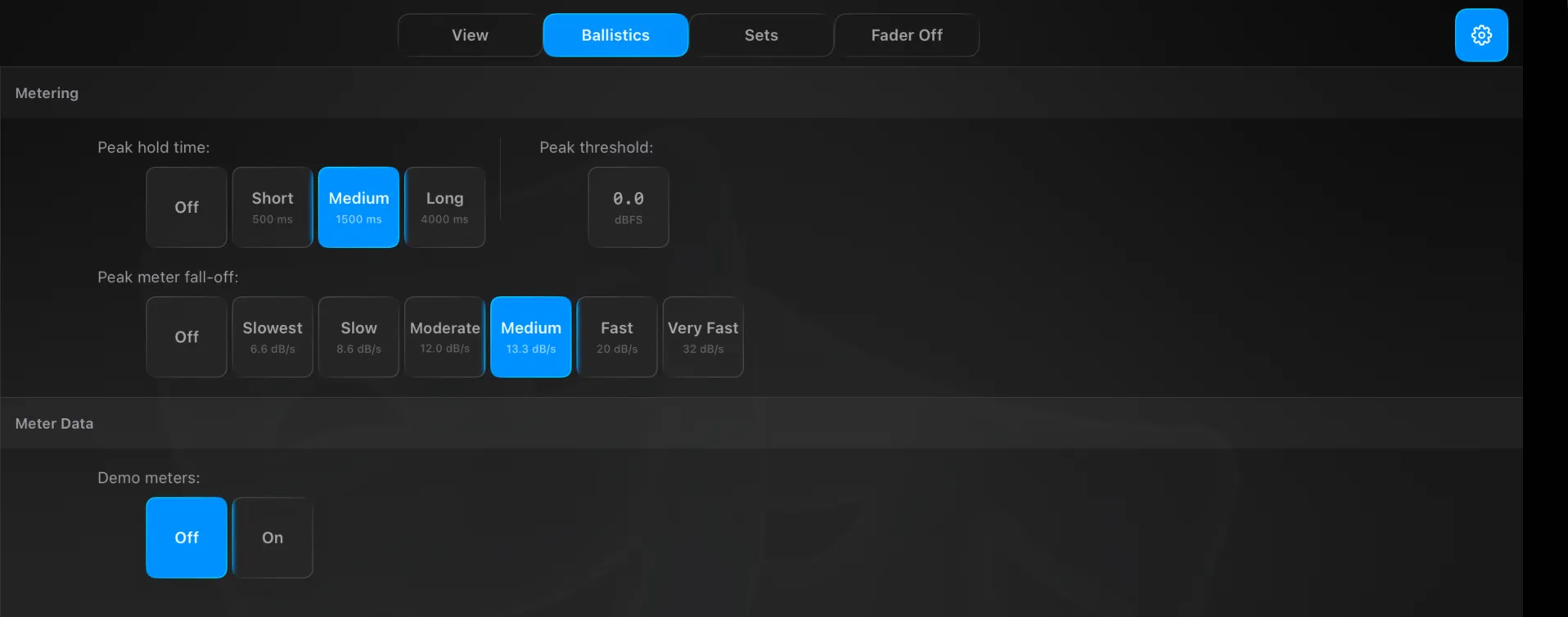
- Peak hold time — how long a peak stays put: Off, Short (500 ms), Medium (1500 ms) or Long (4000 ms).
- Peak threshold — the level a peak registers at, in dBFS.
- Peak meter fall-off — how fast a held peak falls away: Off, Slowest (6.6 dB/s), Slow (8.6 dB/s), Moderate (12.0 dB/s), Medium (13.3 dB/s), Fast (20 dB/s) or Very Fast (32 dB/s).
Meter Data
- Demo meters — on or off. Drives the grid from simulated levels, useful for showing the app with no console connected.
Sets
Build and manage user sets — your own channel selections that appear in the Overview header.
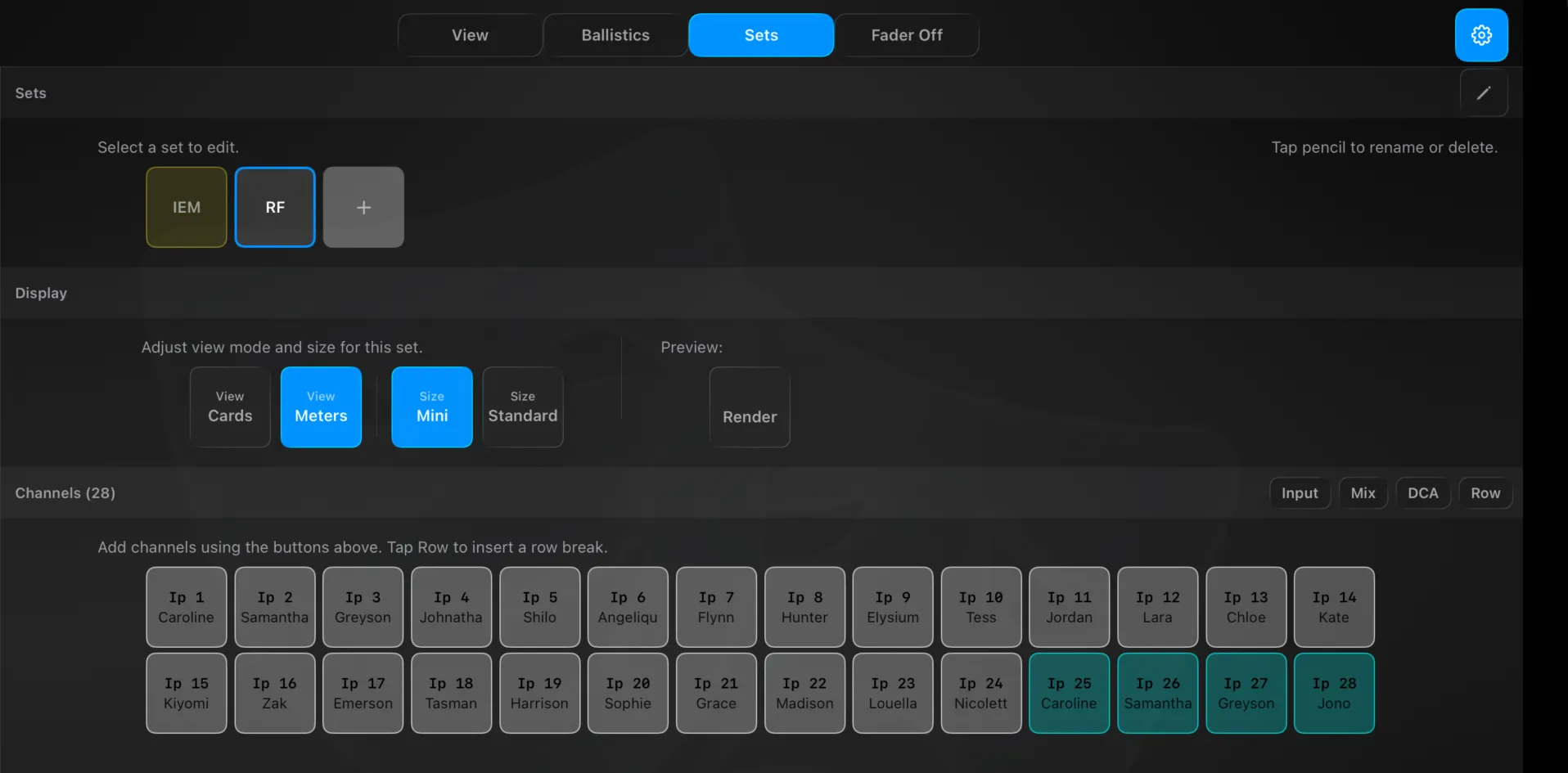
- Tap a set to edit it, + to create one, the pencil to rename or delete.
- Display — give each set its own view (Cards or Meters) and size (Mini or Standard); Render previews it.
- Channels — add channels with the Input / Mix / DCA buttons, and Row to insert a row break so you can lay the set out in rows. Added channels highlight; tap one to remove it.
Fader Off
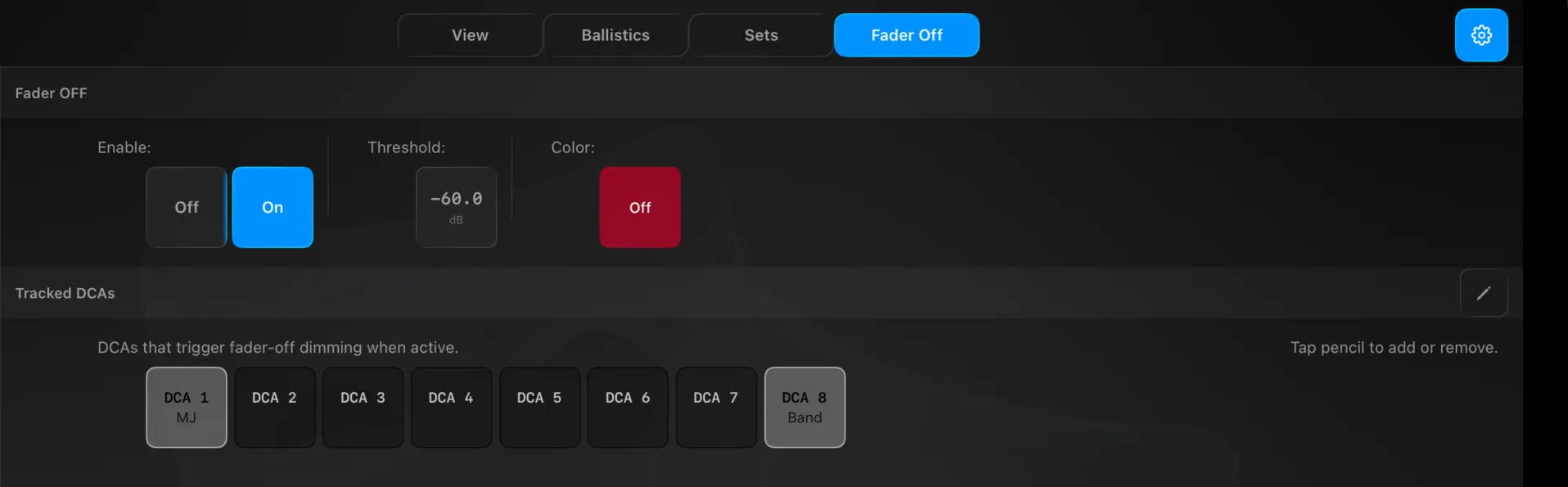
Dims channels whose fader is pulled below a threshold, so “parked” channels recede in the grid.
- Enable on or off, a Threshold in dB (e.g. −60.0), and a Colour for the dimmed state.
- Tracked DCAs — choose which DCAs trigger fader-off dimming when they’re active; the pencil adds or removes them.
Technical Reference
Function modes write directly through the bridge router. Fader sub-modes map to these parameters:
| Sub-mode | Parameter | Range |
|---|---|---|
| Level | channel level | −144 … +10 dB (detent 0) |
| Trim | preamp trim | −20 … +20 dB |
| Gate | gate threshold | −80 … 0 dB |
| Comp | comp threshold | −80 … 0 dB |
| HPF | high-pass frequency | 20 … 20 000 Hz |
Mute and PAFL toggle the channel’s mute/solo; Alt Src focuses the channel in the alt-source manager.