Panel Layout
The frame every panel shares — header across the top, work area in the middle, dock along the bottom.
Every panel is built on the same frame, so once you know one you know them all: a header across the top, the panel’s work area in the middle, and the dock along the bottom.
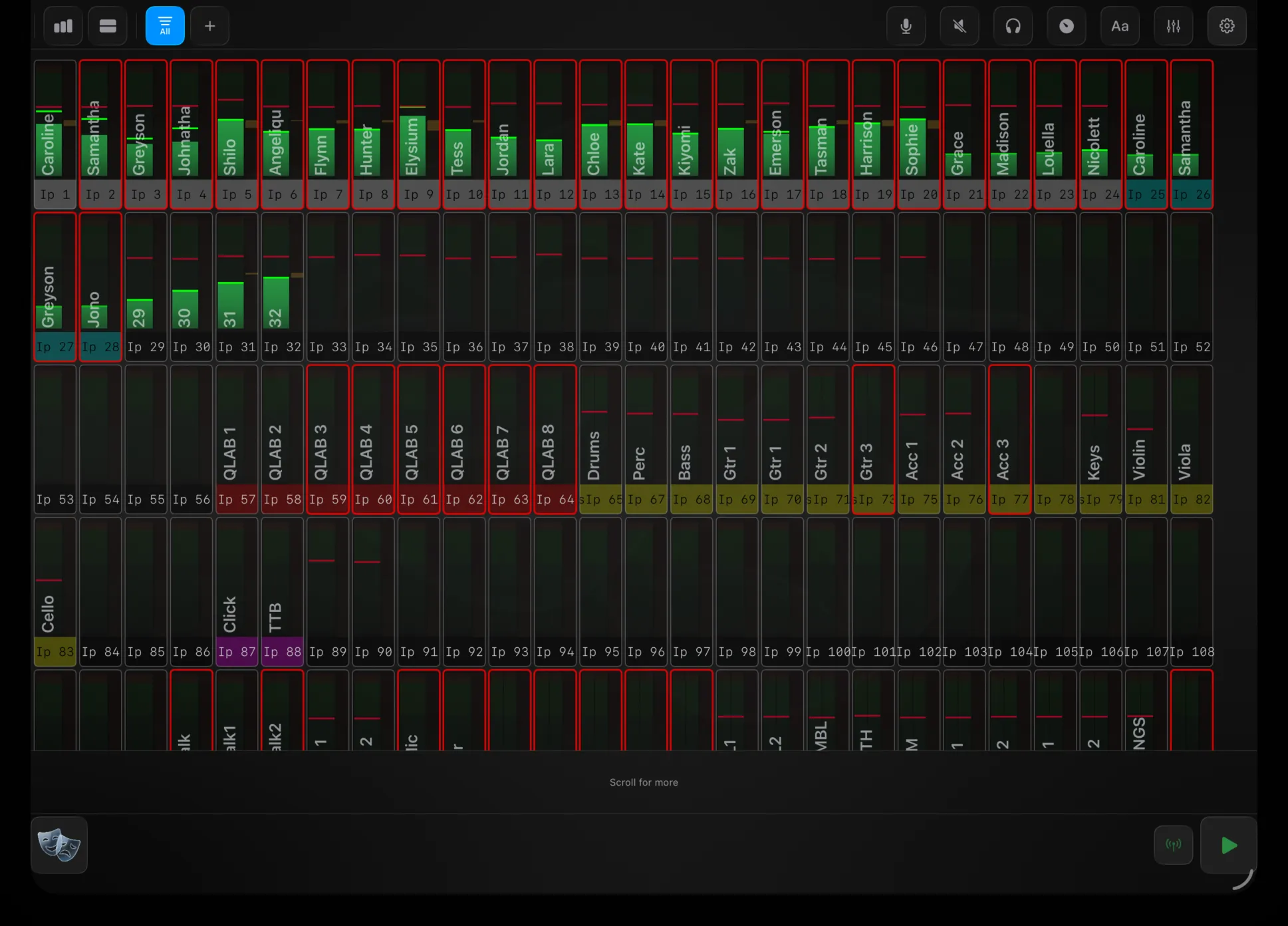
The header
A slim bar across the top of every panel. Its shape is always the same, even though the controls change from panel to panel:
- Centre — the panel name. Whichever panel you’re in is named here (e.g. “Show”, “Overview”).
- Right — the Settings gear. Tap it to open Settings at that panel’s own section — so from Overview the gear lands you on Overview’s settings, from Show on Show’s. On Mac there’s also an orientation toggle here — see On Mac (Catalyst).
- Left and right — panel controls. The rest of the header holds controls specific to that panel: view toggles and filters on Overview, page buttons elsewhere, and so on. These are documented on each panel’s own page.
There is no masks button in the header — navigation lives in the dock (see below).
The work area
The middle of the screen is the panel itself — the channel grid, the mesh editor, the T-list, whatever that panel does. It fills all the space between the header and the dock. Some panels add their own inline controls just above the dock (Overview’s footer, Show’s control column); those belong to the panel and are covered on its page.
The dock
The bar along the very bottom is shared by every panel. It holds the Hub (masks), any Macro Sets, Connection and Transport, and it’s where you move between panels. It’s the same everywhere — see The Dock.
Opening settings
The gear never opens a pop-up over the panel. It takes you to the Settings panel, on the section that matches where you were. Settings is a panel in its own right, with its own tabbed sections, reached either from the gear or from the Hub.