The Hub
The panel launcher you land on after connecting — the cards, the Hub strip, and the lock screen.
The Hub is home — the panel launcher you land on once you connect. From here you open any part of the app, and you can always get back to it from the dock.
The panels
The Hub shows a card for each panel. Tap a card to open it.
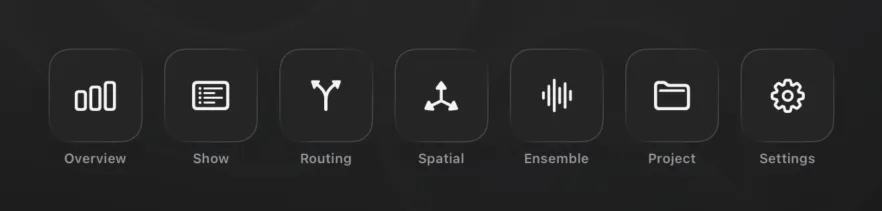
| Card | Panel | What it opens |
|---|---|---|
| Overview | Overview | Every channel and mix, with live meters |
| Show | Show | Scene list, cue list and transport |
| Routing | Routing Sets | Pre-wired signal paths, assigned per cue |
| Spatial | Spatial Panner | Spatial positioning on an editable mesh |
| Ensemble | Ensemble | Automatic chorus levelling |
| Project | Project | Show details, connection, import and export |
| Settings | Settings | App preferences |
The cards use short labels — “Routing”, “Spatial” — for the fuller panel names used throughout this manual. Above them are the Version T logo and the line “Console Upgrade to Version T.”
Moving between panels
There are two ways, and you’ll use the second one most:
- The Hub screen — this page, with its row of cards. Good when you’re starting out or want the full menu.
- The Hub strip — tap the theatre-masks widget in the dock (bottom-left) from any panel to pop up a compact row of every panel — Hub, Overview, Show, Routing Sets, Spatial Panner, Ensemble, Project, Settings and Discovery — with the current one highlighted. You jump straight there without returning to the Hub screen first.
Because the masks widget rides the dock on every panel, the Hub strip is always one tap away. See The Dock for the widget itself.
Locking
Tap the large theatre-masks logo at the top of the Hub screen to lock Version T — handy when you step away from the console. The lock covers everything until you dismiss it.