Show
Build the running order as a T-list of cues, each a portable snapshot that recalls onto whatever console you're patched into.
Show is where the portable show comes to life. You build the running order as a T-list — a list of cues — and each cue captures the parameters you choose as a self-contained snapshot. Press Go and Version T rebuilds that snapshot onto the connected console. The console holds the live result; Version T owns the cue list, so the same show recalls on whatever desk you’re patched into.
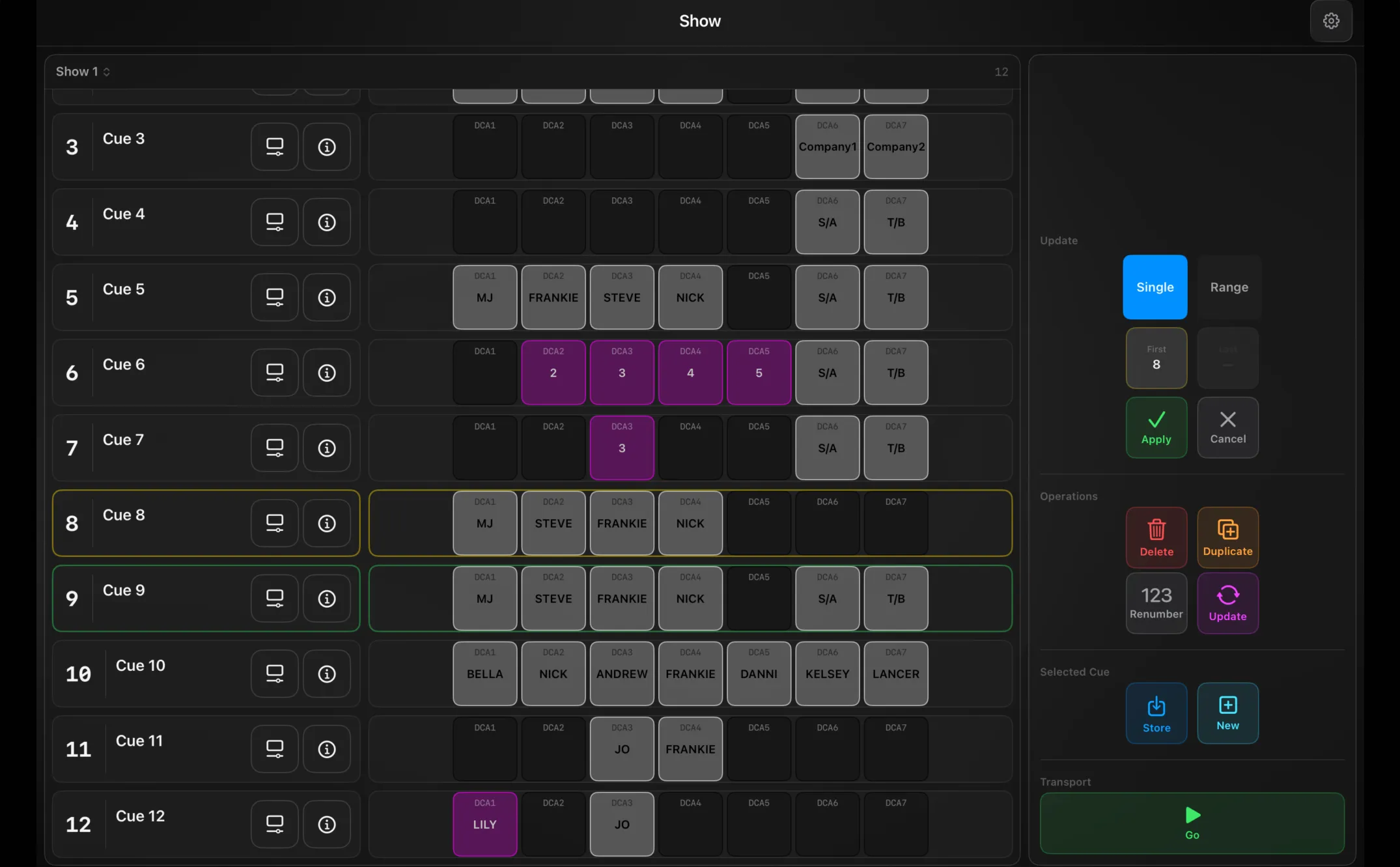
The T-list
The main area is your cue list. At the top, a menu switches between showlists (or creates a new one), with the cue count beside it.
Each cue is a card showing its number, name and comment, with two buttons on the right — a safety button (tinted when the cue has recall-safes) and an info / lock button — and a DCA preview strip showing the DCA names and colours stored in that cue.
Cards colour-code their state: the active cue is yellow, the standby (next Go) is green, a range selection is cyan, and the selected cue is outlined white. Disabled cues are dimmed.
Building and running cues
The controls panel (beside the list in landscape, below it in portrait) has three groups:
- Selected Cue — Store overwrites the selected cue with the current live state; New captures the live state into a brand-new cue after the selected one.
- Transport — Go recalls the standby cue and advances.
- Operations — Delete, Duplicate, Renumber, Update. Choosing one opens a scope picker: Single or Range (tap the First and Last cues), then Apply or Cancel.
Store, Go and Delete can each ask for confirmation first — set in Settings.
What a cue captures
Every cue is built from datacues, one per category. These are portable parameter sets — what should change, in Version T’s terms — so a cue recalls on any connected console:
| Datacue | Tag | Captures |
|---|---|---|
| Routing | RTG | Each tracked input’s routing set |
| DCA | DCA | DCA names, colours and membership |
| Mute | MUT | Tracked input mutes |
| Fader | LVL | Levels |
| Spatial | SPA | Panner positions |
| Alt Source | ALT | Alternate sources |
| Scene Recall | SCN | A console scene recall (venue-specific, not portable) |
Editing a cue
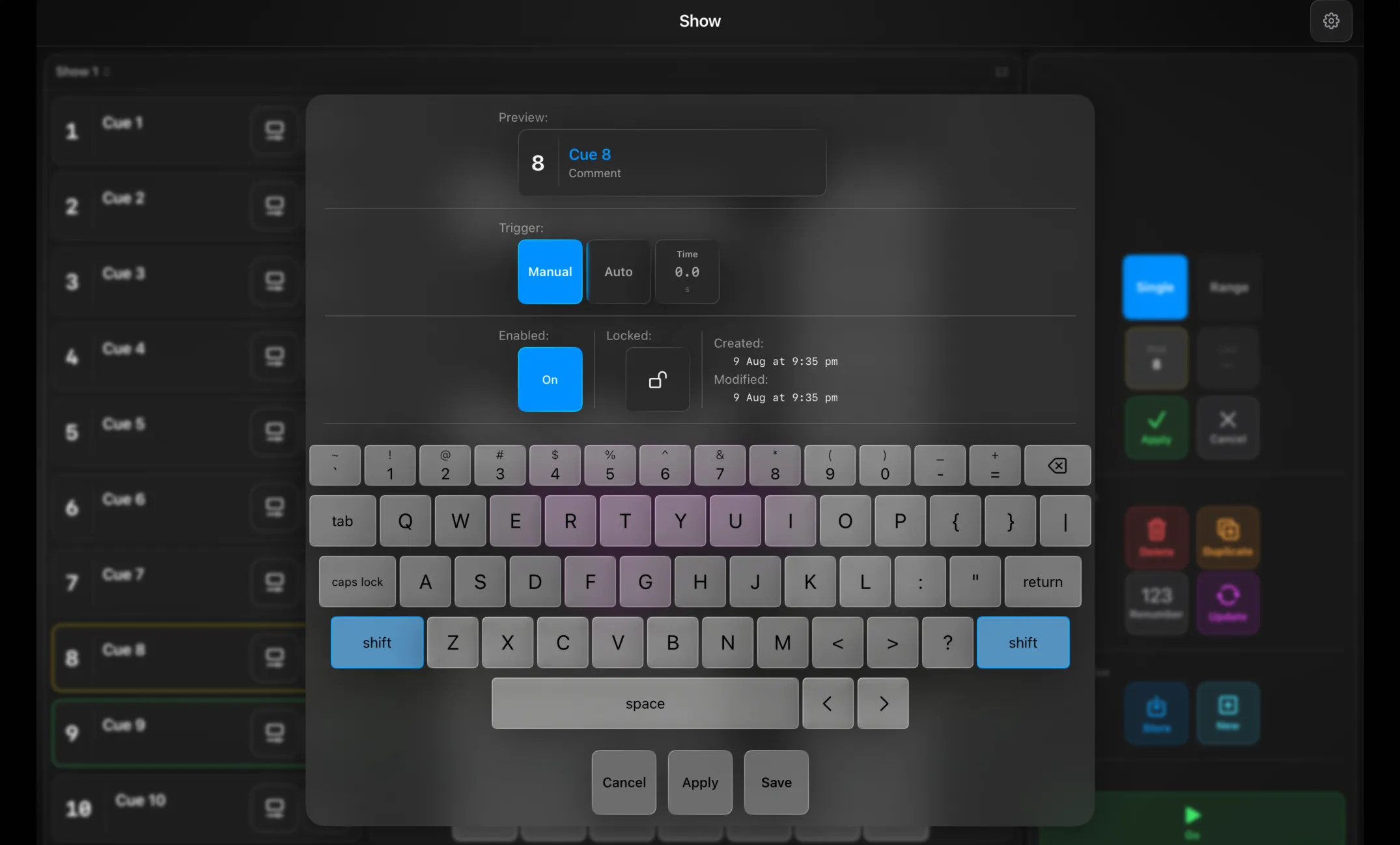
Tap a cue’s info button to edit it: name, cue number, comment, trigger (Manual, or Auto with a wait time), Enabled and Locked, plus its created / modified stamps.
Recall safes
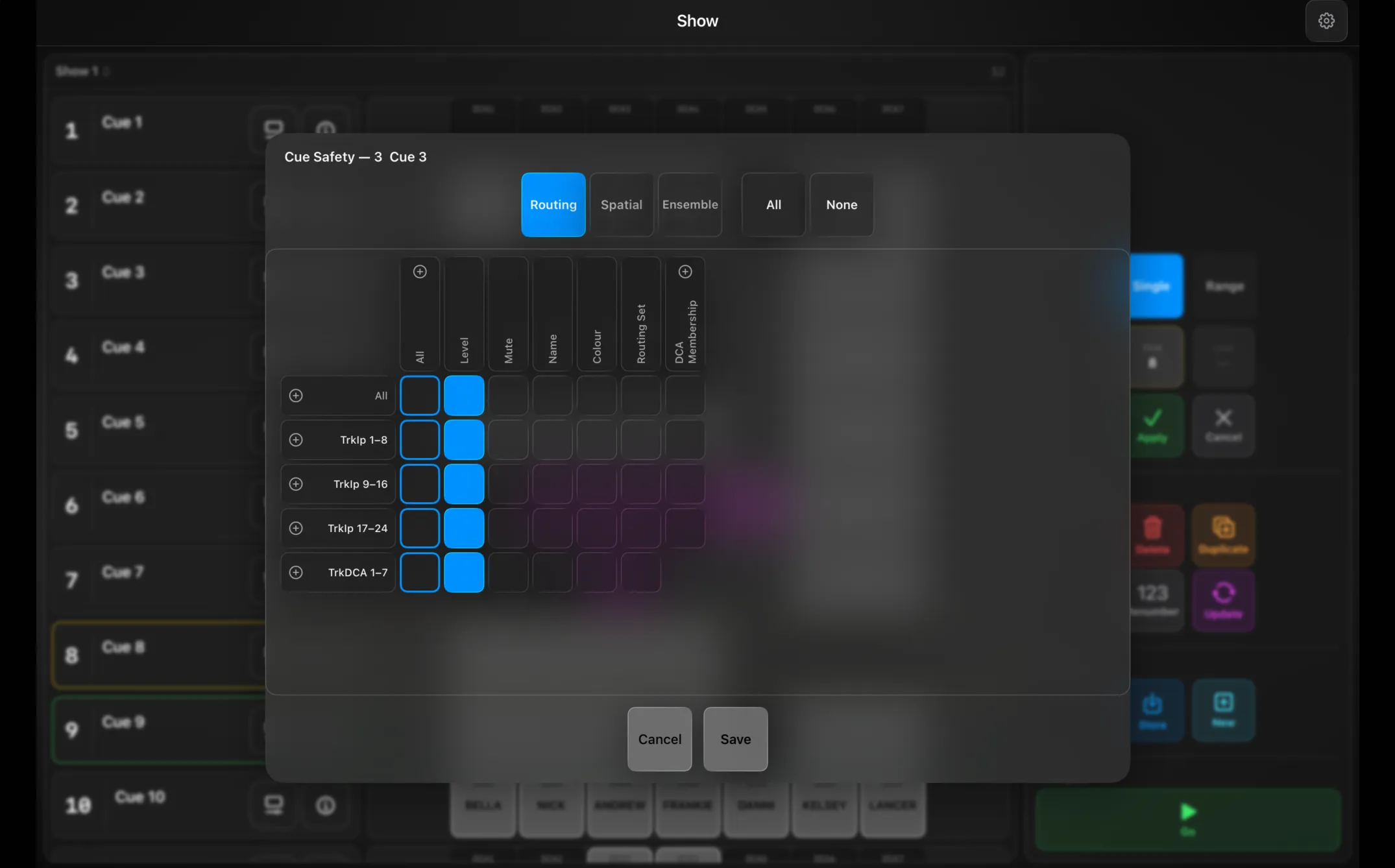
Recall safes protect parameters from being overwritten when a cue is recalled. Version T holds them at two levels, both using the same inputs/DCAs × parameters grid:
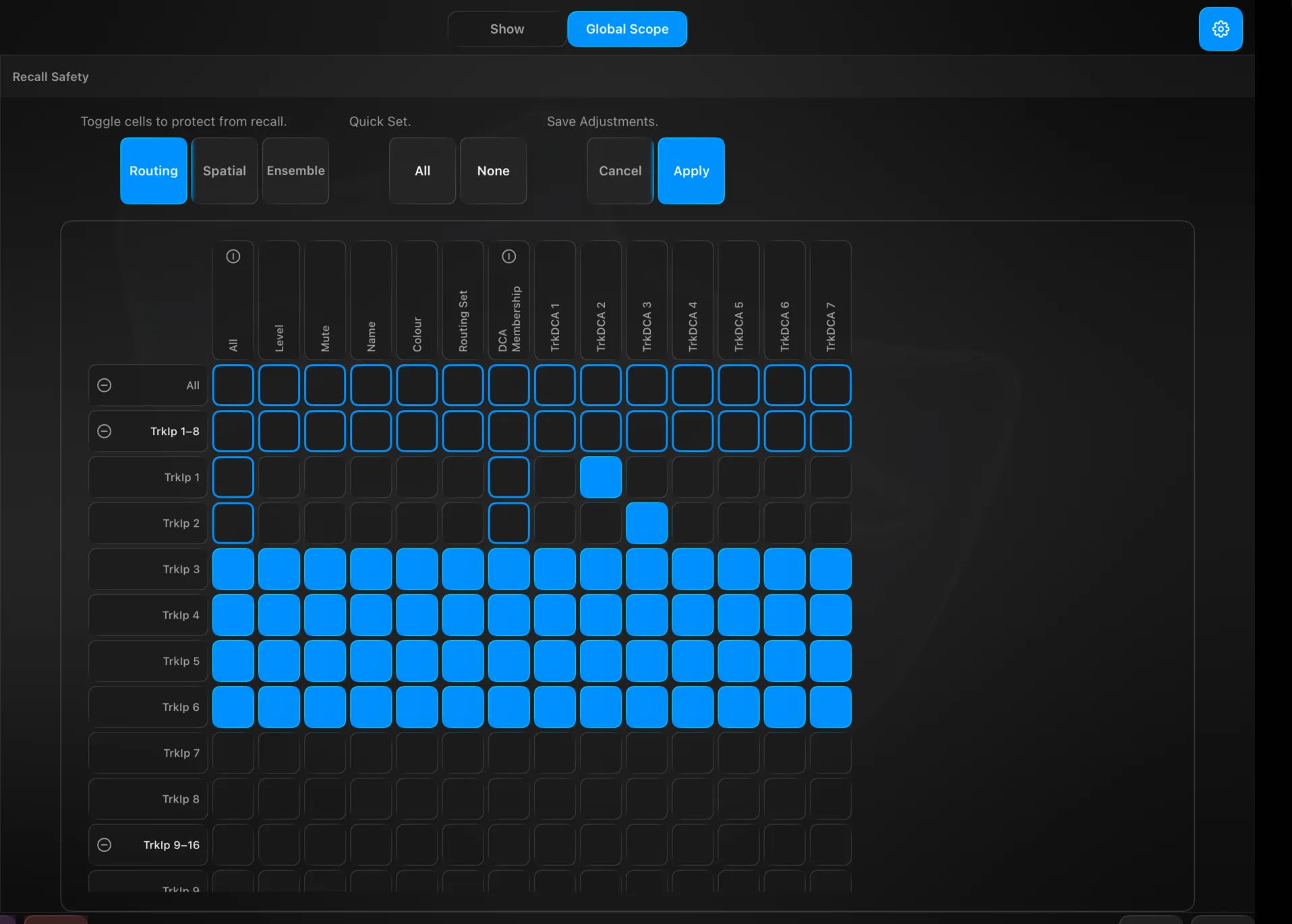
- Per-cue recall safes — tap a cue’s safety button. Each cue carries its own safe set; when that cue fires, the addresses you’ve protected are skipped. The grid runs your tracked inputs and DCAs against parameters (Level, Mute, Name, Colour, Routing Set, DCA Membership…), split by scope (Routing / Spatial / Ensemble), with Quick Set All / None, then Save.
- Global safes — app-wide protection, set in Settings → Show → Global Scope (below). Any address in the global safe set is never overwritten by any cue recall.
The difference is only scope: one cue versus the whole session.
Preferences
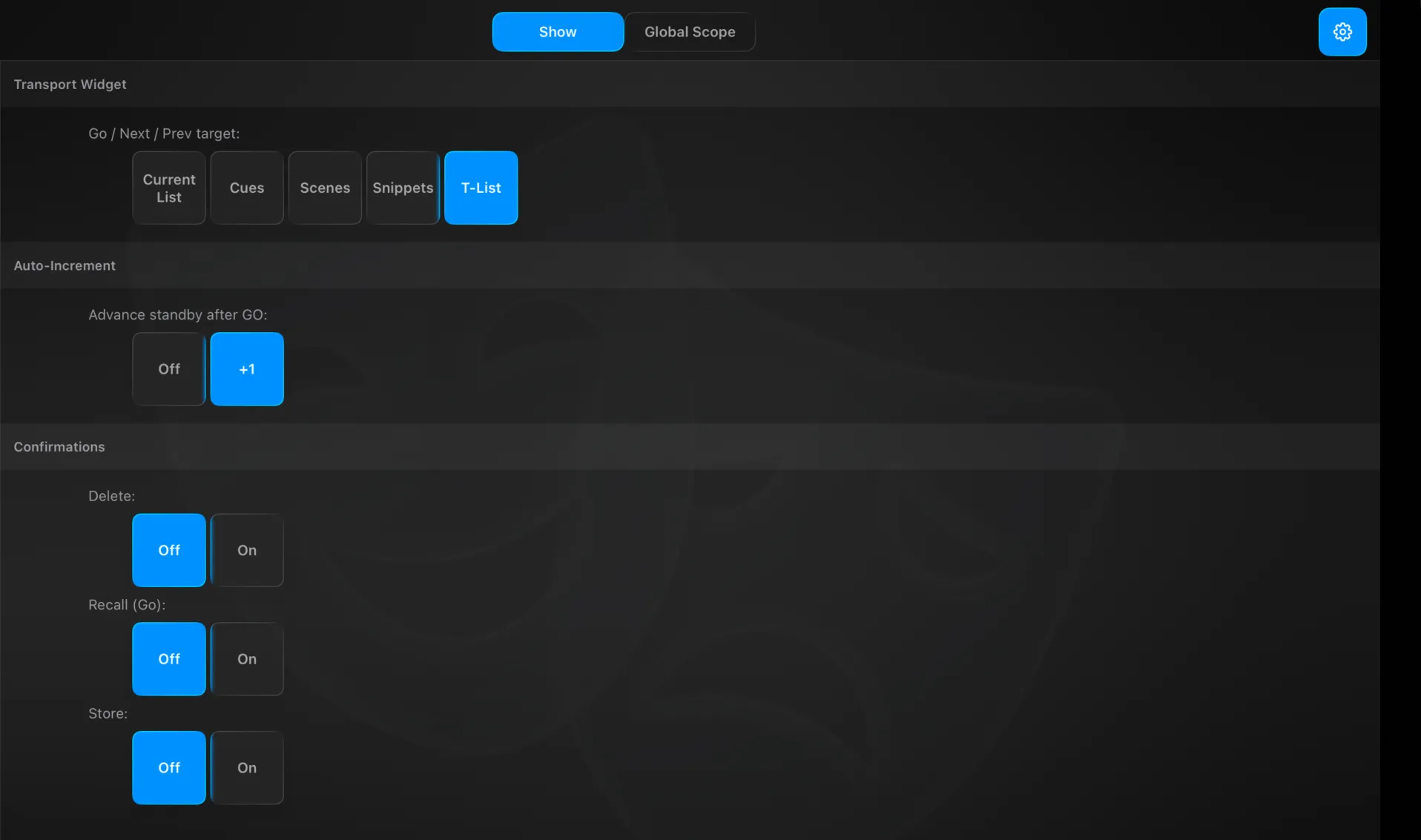
The gear opens Settings → Show, with two tabs:
- Show — the Transport Widget target (what the dock’s Go / Next / Prev drives: Current List, Cues, Scenes, Snippets or T-List), Auto-Increment (Advance standby after GO — Off or +1), and Confirmations for Delete, Recall (Go) and Store.
- Global Scope — Global Safes: the same inputs/DCAs × parameters grid as per-cue recall safes, but applied app-wide — any protected address is never overwritten by any cue recall. Split by scope (Routing / Spatial / Ensemble), Quick Set All / None, then Apply.
Technical Reference
The automation hierarchy: Datacue (captured directives) → Cue (a set of datacues) → Showcue (a cue plus timing: wait / auto-follow) → Showlist (the T-list running order). A project can hold several showlists.
BridgeTListManager drives it: Store recaptures the selected cue’s datacues from current live state (one per type, via AutomationDefinitions), New captures and inserts a fresh cue, and Go recalls at the GO pointer. Because the dock’s Transport widget can target the T-list too, the dock transport is hidden on this panel — Show has its own Go.